Solving the HEIC Image Loading Issue in Ubuntu 26.04 LTS: A Complete Q&A
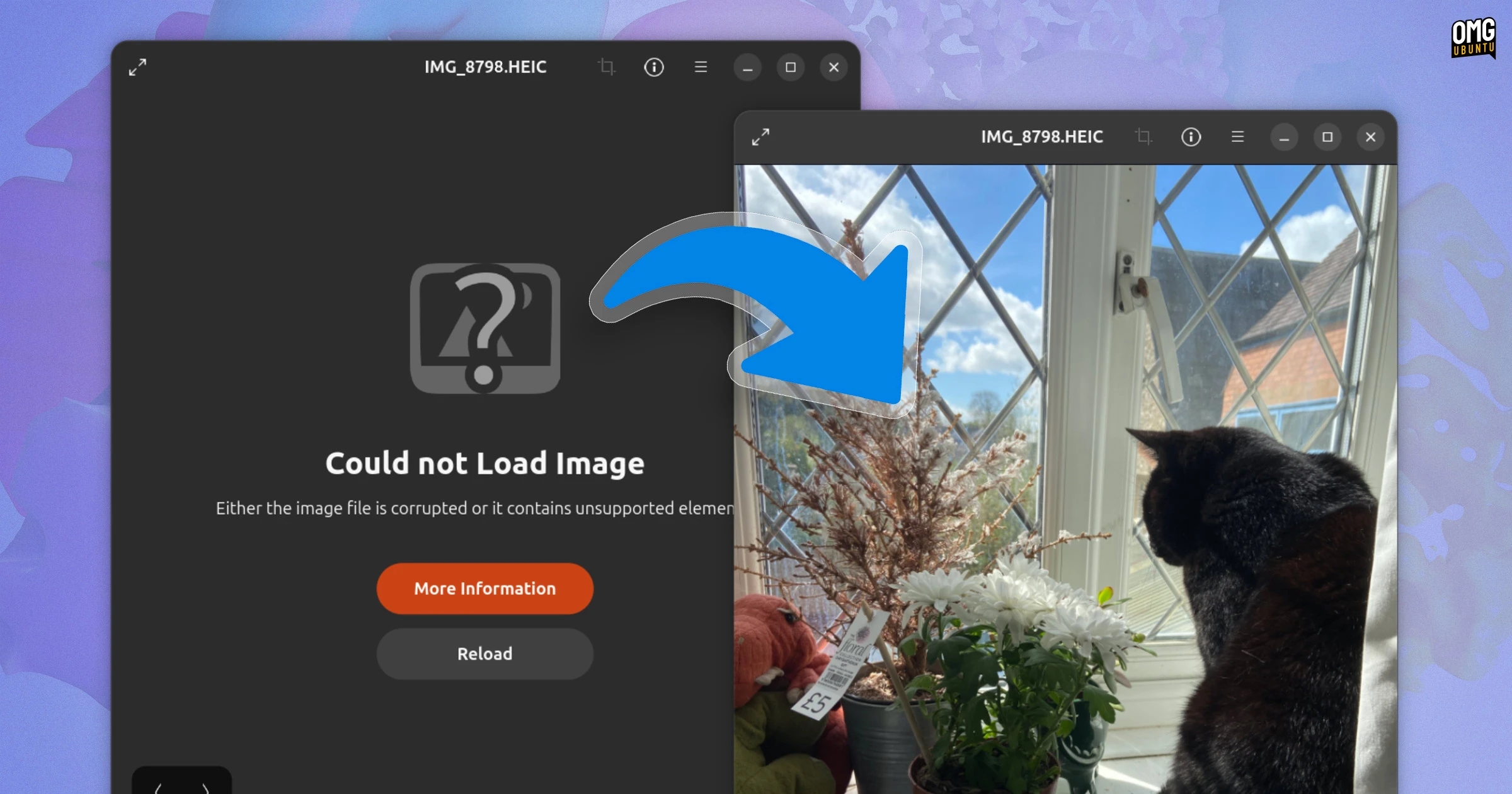
If you've recently upgraded to Ubuntu 26.04 LTS and found that your HEIC (High Efficiency Image Container) photos from an iPhone or Android device now show a “Could not load image” error in the default Image Viewer, you're not alone. This isn't a bug—it's a deliberate change in the dependency chain that prevents the HEIC decoder from being installed by default. While this might seem frustrating, the fix is straightforward. Below, we answer the most common questions about this issue, from why it happens to how to resolve it quickly.
Why are HEIC images not loading in Ubuntu 26.04 LTS?
HEIC (High Efficiency Image Container) is a modern image format used by default on iPhones and many newer Android devices. It uses H.265/HEVC compression to save space without sacrificing quality. Ubuntu 26.04 LTS no longer includes a preinstalled decoder for this format, which means the system lacks the necessary software to read HEIC files. When you try to open such an image in the default Image Viewer, it fails with a “Could not load image” error because the underlying library (libheif) isn't available. This was an intentional decision by the Ubuntu team to manage dependencies and reduce the default install size, but it catches many users off guard when they first connect their smartphone to the PC.

What exactly changed in Ubuntu 26.04 regarding HEIC support?
In previous versions of Ubuntu, the HEIC decoder was pulled in as a dependency of certain media packages. For Ubuntu 26.04 LTS, the dependency chains were tweaked so that the decoder library (libheif) is no longer automatically installed. This means even if you have apps that could support HEIC (like GNOME Image Viewer or GIMP), they can't open the files because the backend codec is missing. The change was made to avoid bundling non-free or patent-encumbered code by default (HEVC/H.265 has licensing complexities). It's not a bug—it's a maintainer decision, but it's easily reversible by installing the missing package manually.
How can I install the necessary HEIC decoder on Ubuntu 26.04?
Fixing the issue is simple and requires only a terminal. Open a terminal and run the following command:
sudo apt install libheif1 heif-thumbnailerThis installs the core HEIC/HEIF decoder library (libheif1) along with a thumbnailer so file managers like Nautilus can show previews. If you also want support for related tools, you can install heif-gdk-pixbuf or heif-plugin. After installation, restart your Image Viewer or file manager. The “Could not load image” error should disappear, and HEIC files will open normally. If you're using a different image viewer like Eye of GNOME or GIMP, they'll also benefit from this library as it's used system-wide.
Is there an alternative way to view HEIC images without installing a decoder?
If you prefer not to install the system-wide HEIC decoder, you can use alternative methods. One option is to convert HEIC files to a more common format like JPEG or PNG using an online converter (but this requires uploading your images, which may raise privacy concerns). Another is to use a standalone application that includes its own decoder, such as ImageMagick with HEIC support built in (install imagemagick and the libheif-dev package). You could also view HEIC images directly via a web browser that supports the format, like Chrome or Firefox (though support varies). However, these workarounds are less seamless than installing the decoder; the command-line install remains the most straightforward fix for full desktop integration.
Which other applications are affected by this missing decoder?
Any application that relies on the system's image decoding libraries will be unable to open HEIC files without the decoder. This includes the default GNOME Image Viewer (called Image Viewer or eog), the file manager's preview feature, and photo managers like Shotwell or digiKam. Even command-line tools like feh or sxiv may fail if they use GdkPixbuf or similar backends. On the other hand, apps that bundle their own decoders (for example, some web browsers or video players) might still work because they don't rely on the system library. But for the core Ubuntu desktop experience, installing libheif1 restores full compatibility across the board.
Will future updates of Ubuntu restore HEIC support by default?
It's unlikely that Ubuntu will include the HEIC decoder by default in the near future. The decision to exclude libheif was made to avoid potential legal issues related to the HEVC patent pool. Including H.265 decoding libraries out of the box could create licensing obligations for Ubuntu distributors. Additionally, keeping the default installation lean is a priority for the LTS releases. However, community packages remain available, and the libheif library is actively maintained. You can expect that the package will continue to be available in the official repositories for manual installation. As open-source alternatives like AVIF (which uses AV1 codec) become more popular, future releases might shift focus away from HEIC entirely.
Are there any risks or downsides to manually installing the HEIC decoder?
There are very few risks. The libheif1 package is maintained as part of Ubuntu's universe repository and receives security updates. It does not introduce any known conflicts with other software. However, because HEIC/H.265 is a patent-encumbered format, some users or organizations may have legal concerns about using it, though the software itself is open source. From a technical standpoint, installing the decoder may increase the disk footprint slightly (a few megabytes) and could potentially slow down thumbnail generation for large photo libraries. These trade-offs are minimal for most users. As always, it's good practice to keep your system updated (run sudo apt update && sudo apt upgrade) after adding any repository packages.
Related Articles
- Flutter’s Migration from CocoaPods to Swift Package Manager: Your Key Questions Answered
- Swift for Windows Gains Dedicated Workgroup to Drive Platform Support
- iOS 26 Phone App: Two Game-Changing Features That Finally Make Calls Enjoyable
- Flutter's Transition to Swift Package Manager: What Developers Need to Know
- How iOS 26’s Phone App Transformed Calling with Two Game-Changing Features
- 10 Things You Need to Know About Data Normalization: Risks, Trade-offs, and AI Implications
- React Native 0.84: Hermes V1 Becomes Default, Build Times Slash, and Legacy Code Removed
- Android 17 QPR1 Beta 3 Revamps Media Switching with Card-Style Carousel